Step 1
Choose the craft pattern
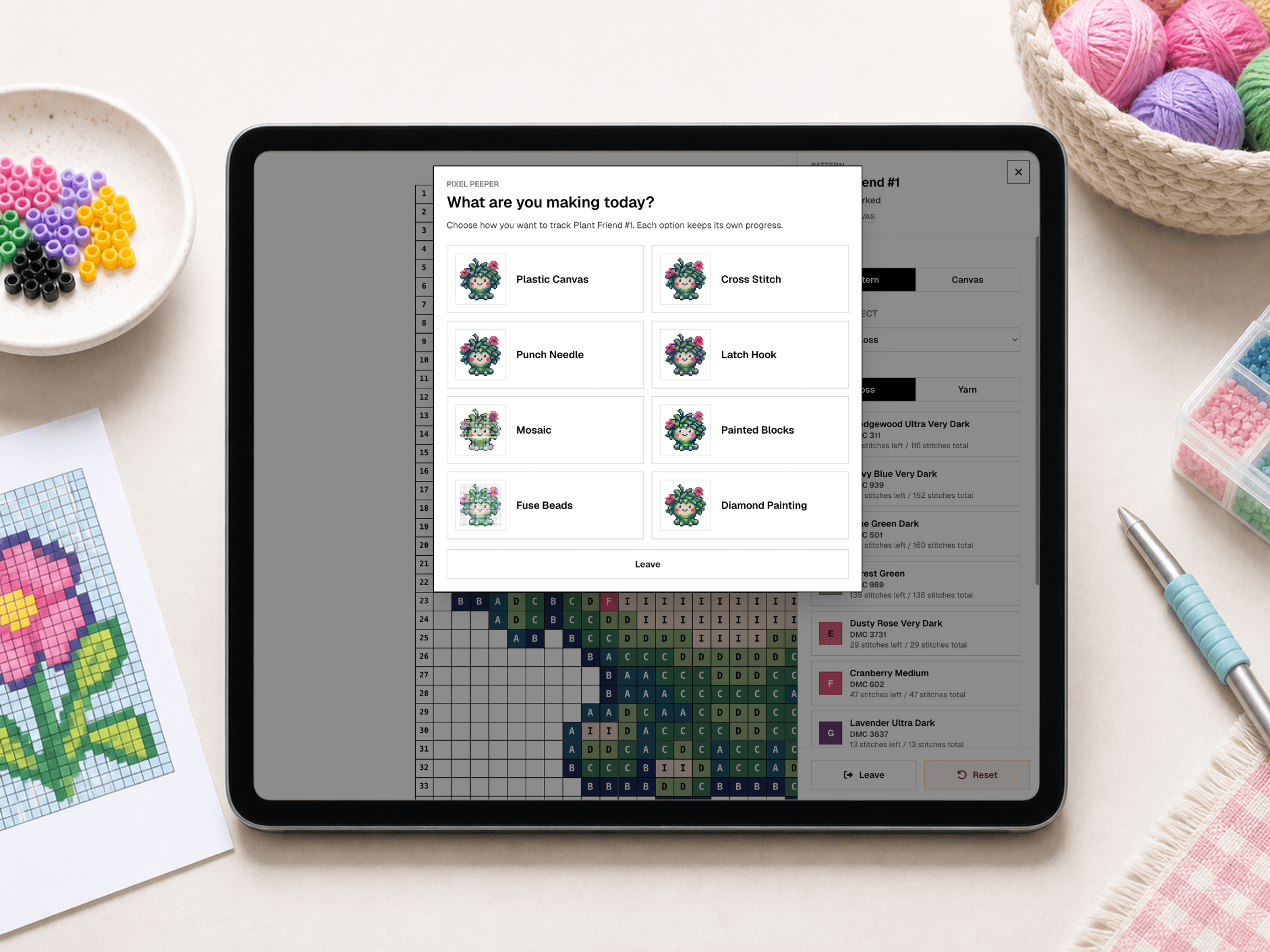
When Pixel Peeper asks what you are making today, choose the craft view that matches your project, such as Plastic Canvas, Mosaic, Cross Stitch, Fuse Beads, or Diamond Painting.

Online pattern tracking
Pixel Peeper is the online pattern viewer built for hands-on pixel crafting. It turns the pattern chart into an interactive workspace where you can zoom in, filter by color, and mark blocks as you complete them.
Use it beside your craft supplies when the printed chart is too small, when similar colors are hard to track, or when you want a quick way to remember exactly which squares are already done.
Pixel Peeper is your digital pattern companion, but it is totally optional. If you prefer working from paper, you can print a pattern for any available craft and follow that version instead.
You will learn the following:
Functionality
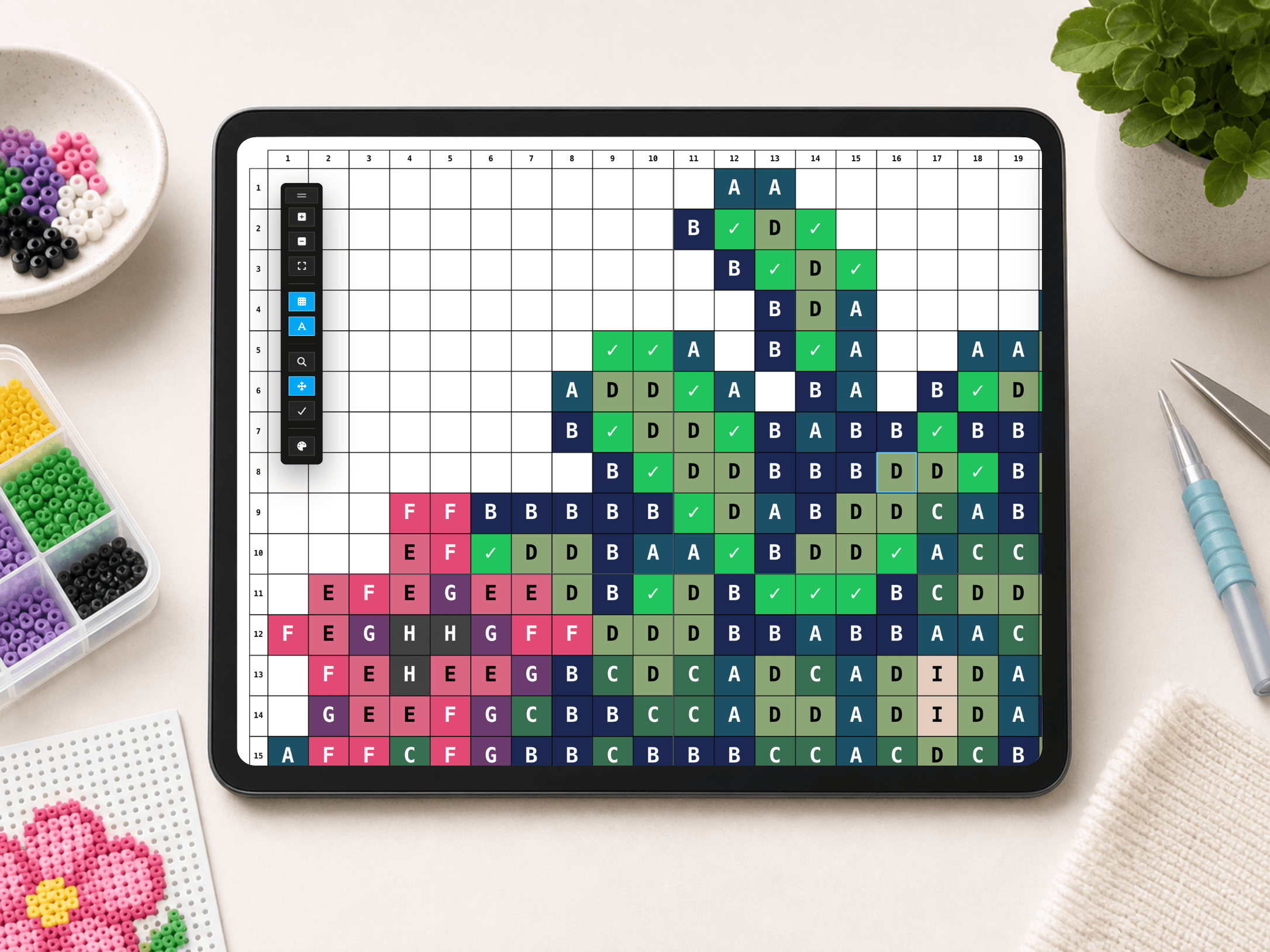
The viewer includes zoom controls, fit-to-screen, grid and symbol toggles, pan mode, mark mode, a color selection drawer, row and column summaries, and a reset option if you want to start over.
Each craft mode adjusts how the pattern is interpreted. For example, mosaic adds spacing between tiles, fuse beads show round beads, latch hook tracks the expanded canvas grid, and plastic canvas can switch between pattern and canvas views.
Preparation
Choose any pattern on 8bit Craft that you want to make, open its pattern page, and click Open Pixel Peeper App. Pixel Peeper loads that pattern into an interactive grid so you can follow along while you craft.
Technique
Use Pixel Peeper as your live checklist. You can mark one cell at a time, drag across matching cells, filter the grid to one color, or open a row summary and mark the row complete.
Checked cells are saved in your browser for that pattern, color set, craft, and view mode. If you switch craft modes, Pixel Peeper keeps a separate progress record.
Step 1
When Pixel Peeper asks what you are making today, choose the craft view that matches your project, such as Plastic Canvas, Mosaic, Cross Stitch, Fuse Beads, or Diamond Painting.
Step 2
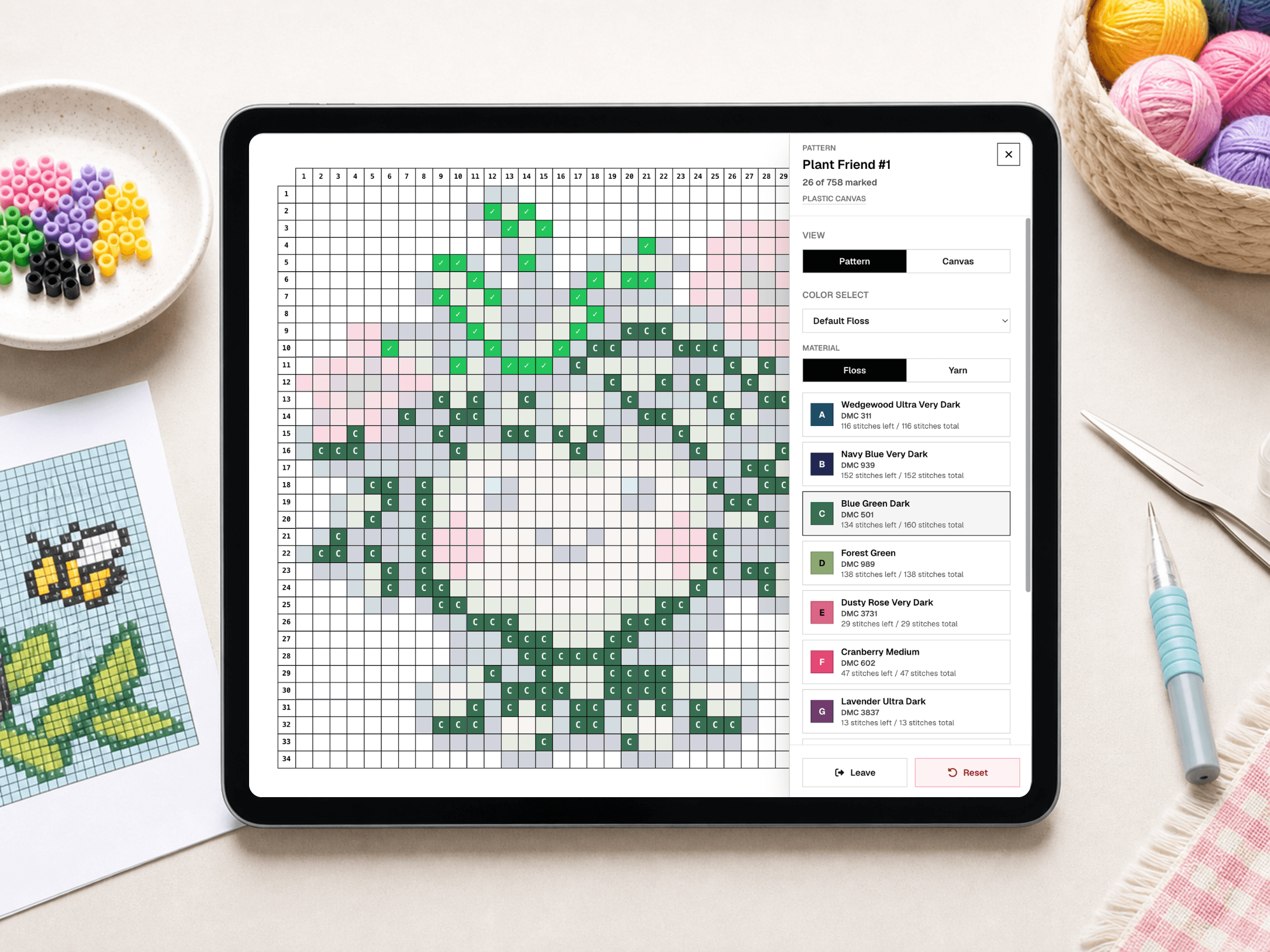
Use the palette button on the floating toolbar to open the pattern options drawer. This drawer shows the active craft, color list, remaining counts, and reset controls.
Step 3
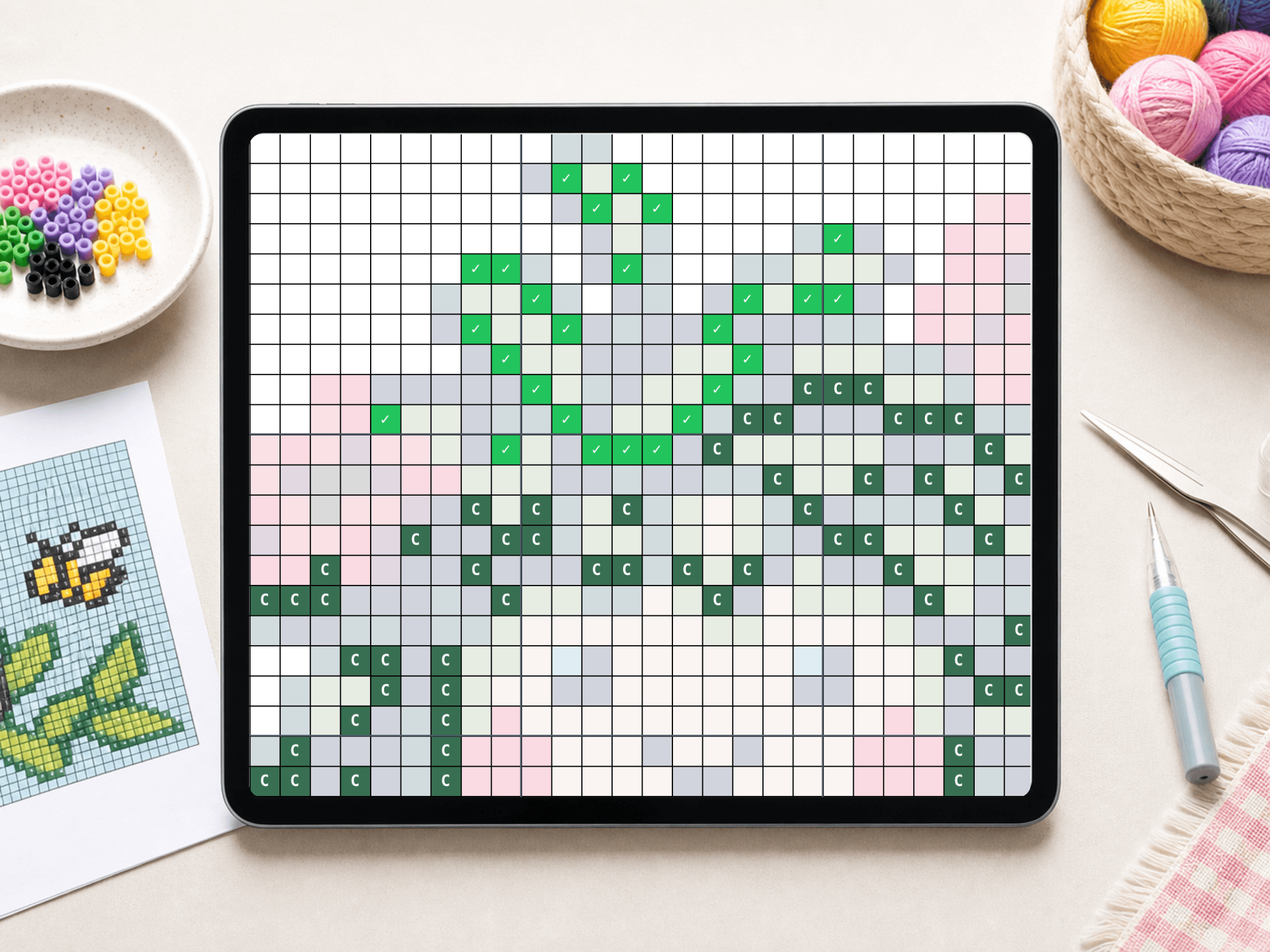
Switch to mark mode with the check button, then click or tap finished cells. You can also drag across cells to mark a run. Click or tap a checked cell again if you need to undo it.
Step 4
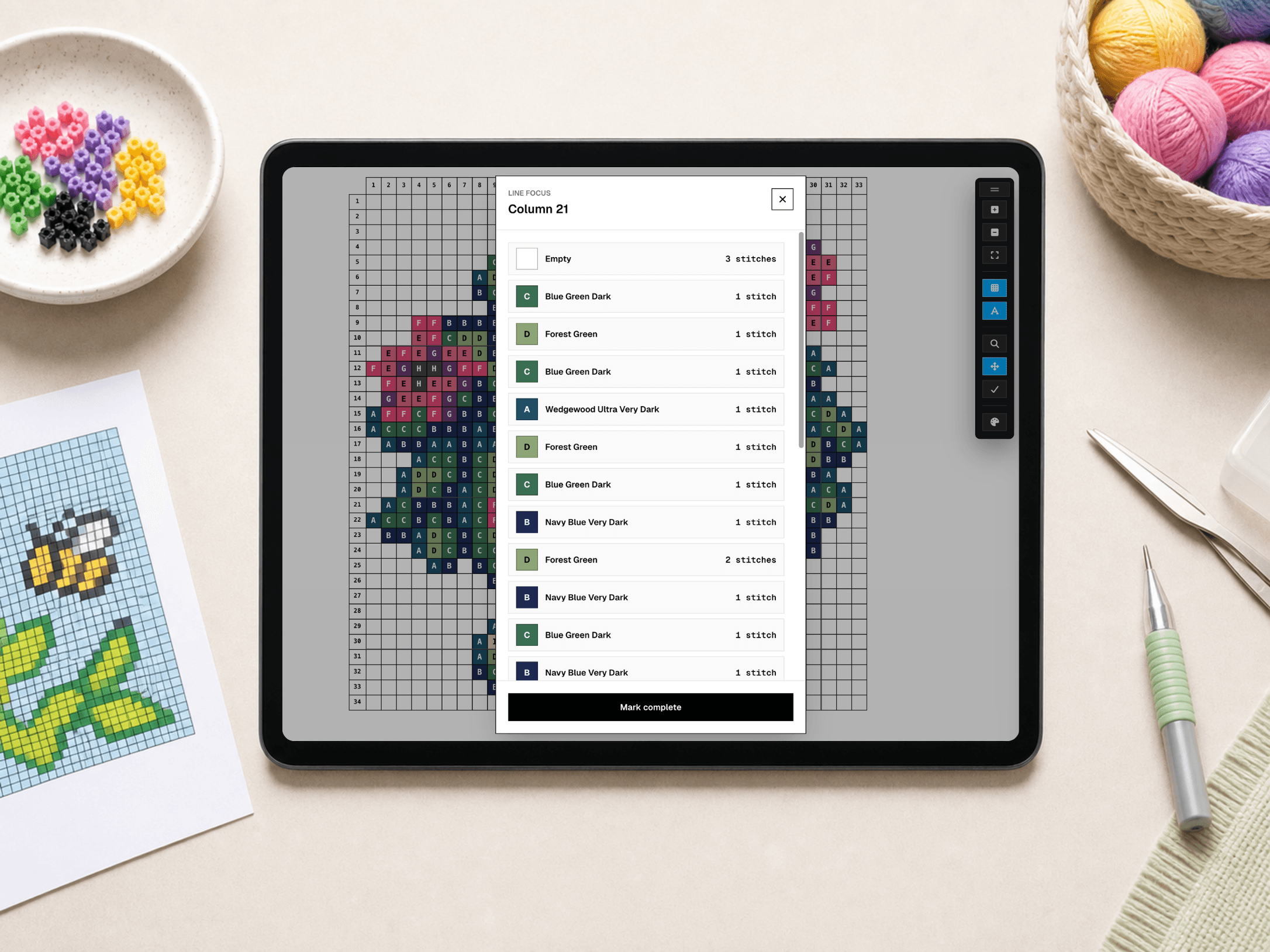
Click or tap the row label on the edge of the grid to open the row summary. Review the color counts for that row, then choose Mark complete when every block in that row is finished.
Step 5
Zoom in when cells are small, use pan mode to move around the design, and use fit pattern when you want to return to the full view. Grid and symbol toggles can make dense areas easier to read.
Tip
For long sessions, choose one row or one color before you start. Keep the drawer open if you are watching remaining counts, or close it when you want the largest possible grid view.
When a row is complete, use the row summary to mark it finished, then let Pixel Peeper move you to the next row. That keeps the pattern moving forward without forcing you to remember where you stopped.
Choose a free pattern or open one from your account, launch Pixel Peeper, pick your craft, and let the viewer keep track while you make the design.
Browse Patterns